The code
Vidual Inbox’s live chat is one line of code. It looks like this, with your own key in place of YOUR-KEY:
<script async src="https://inbox-api.vidual.app/widget/v1.js"
        data-vidual="YOUR-KEY"></script>
Your copy, with the key already in it, is in Vidual Inbox under Integrations, then Chat widget. If someone else looks after your site, Send the instructions on that page emails them the code and a link to this guide.
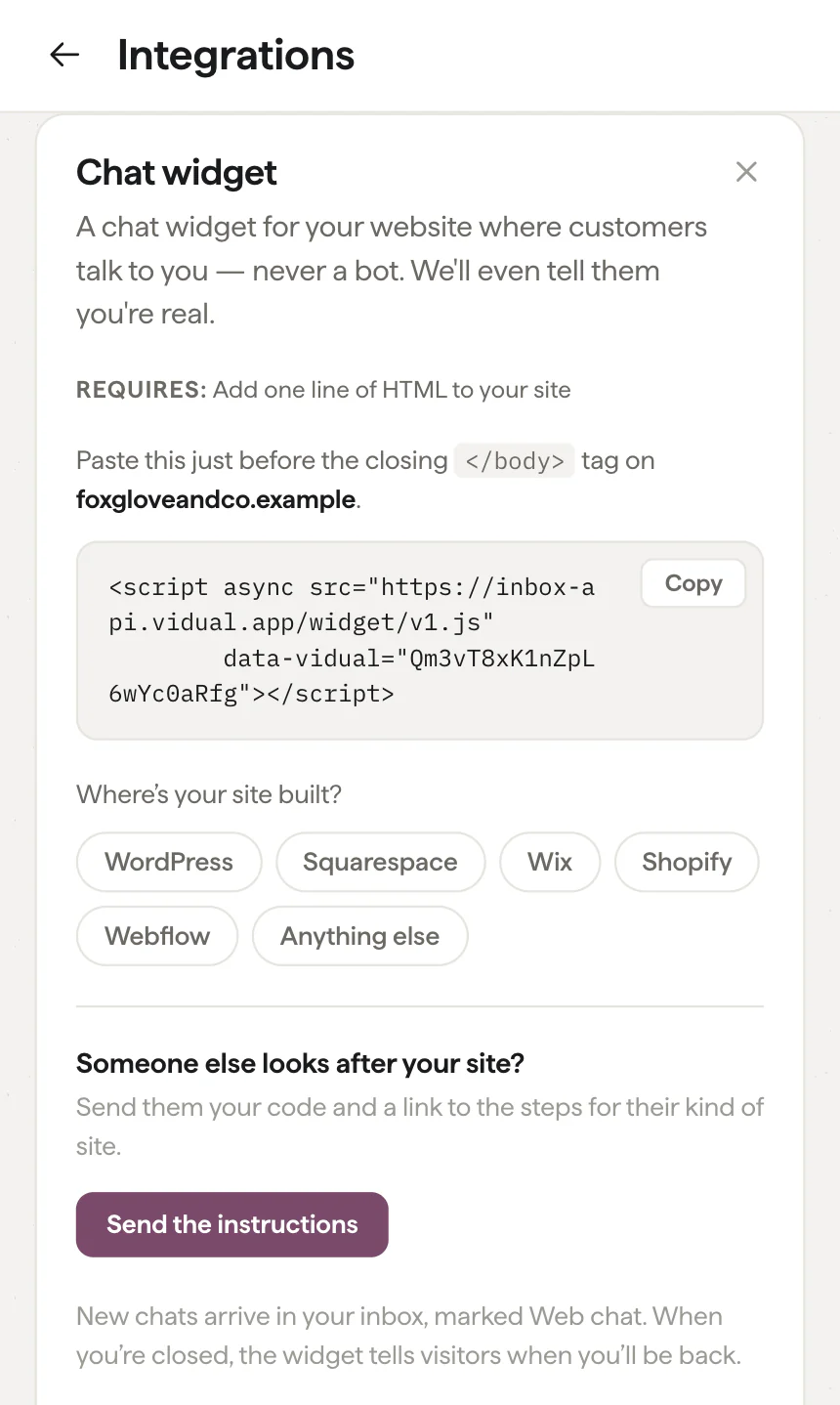
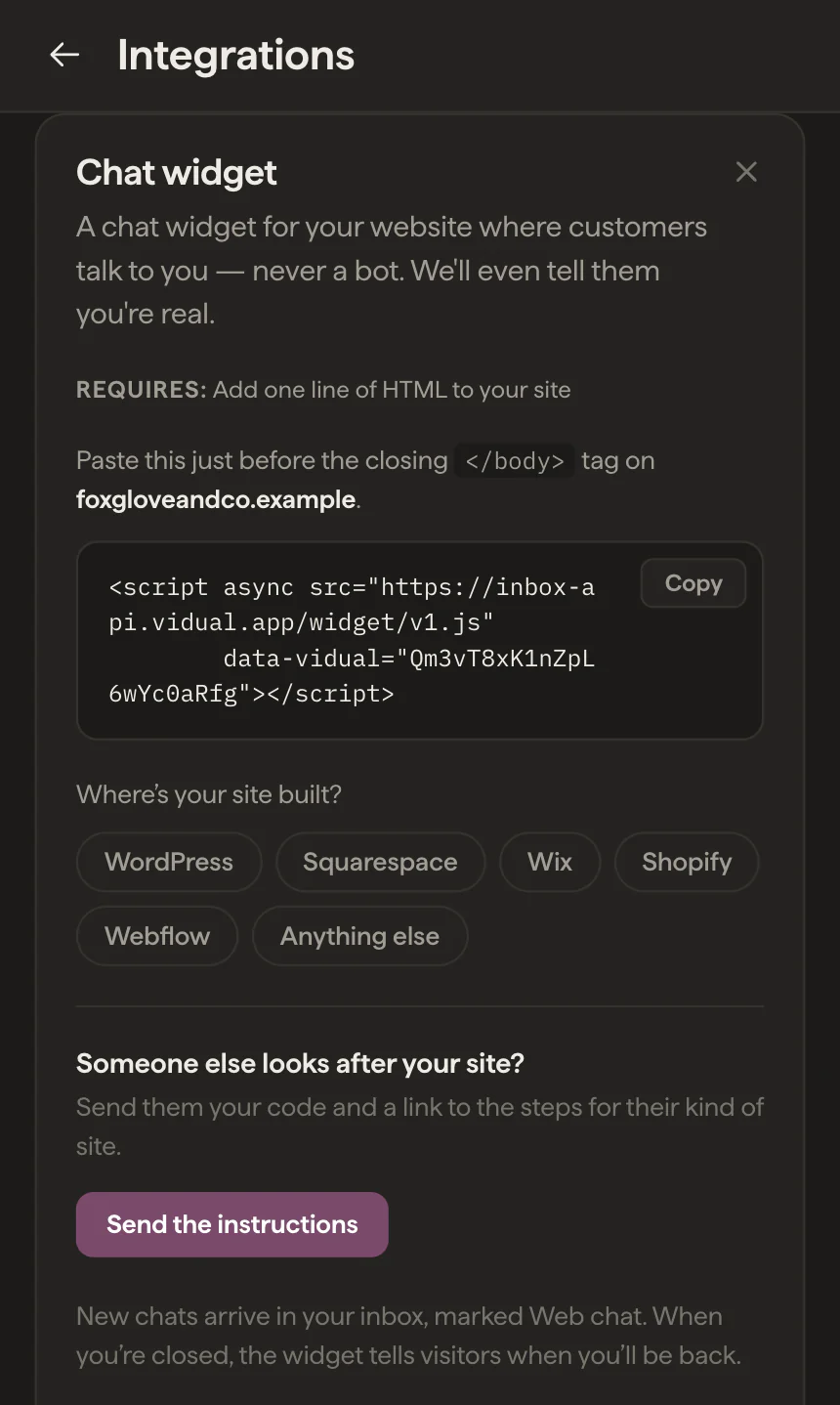
The code goes just before the closing </body> tag, and it needs to be on every page, so use your site’s site-wide footer setting rather than a single page. It loads asynchronously: your pages finish loading without waiting for it.
WordPress
The safest way is the free WPCode plugin, which adds a site-wide footer box that survives theme updates.
- In your WordPress dashboard, go to Plugins, then Add New, and install WPCode (listed as Insert Headers and Footers by WPCode).
- Open Code Snippets, then Header & Footer.
- Paste the code into the Footer box and click Save Changes.
On WordPress.com, plugins need a paid plan.
If you’re comfortable editing theme files and your site uses a classic theme, there’s a quicker route. Go to Appearance, then Theme File Editor, open footer.php and paste the code just above </body>. Two cautions: a theme update replaces the file unless you’re using a child theme, and a mistake in that file can take the whole site down. Newer block themes have no footer.php, so on those use the plugin.
Squarespace
- Open Pages, then Website Tools, then Code Injection.
- Paste the code into the Footer box.
- Click Save.
Code Injection needs a Core, Plus or Advanced plan. Squarespace doesn’t run custom code on its checkout pages, so the chat won’t appear there.
Wix
- In your site dashboard, open Settings, then Custom Code, under Development & integrations.
- Click Add Custom Code, paste the code and give it a name such as Live chat.
- Under Add Code to Pages choose All pages, and under Place Code in choose Body - end.
- Click Apply.
Custom code only runs on a published site with a connected domain.
Shopify
- Go to Online Store, then Themes. Next to your live theme, open the menu and choose Duplicate, so you have a copy to go back to.
- On the live theme, open the same menu and choose Edit code.
- In the Layout folder, open
theme.liquidand paste the code just above</body>. - Click Save.
Updating your theme to a new version replaces this file, so check the chat is still there after an update.
Webflow
- Open Site settings, then the Custom code tab.
- Paste the code into Footer code and click Save changes.
- Publish the site. The chat only appears on the published site.
Custom code needs a paid Webflow plan.
Google Tag Manager
If your site already loads Google Tag Manager, you can add the chat there without touching the site.
- In your container, go to Tags, then New, and choose Custom HTML as the tag type.
- Paste the code.
- Set the trigger to All Pages.
- Save, then Submit and Publish.
Any other site
Paste the code just before </body> in whatever every page shares: a footer include, a layout template or the root layout of an app. Once there, it covers the whole site. Most website builders have a box for this under a name like Custom code, Code injection, Tracking code or Footer scripts.
Checking it works
Open your site in a private window. Within a few seconds a round chat button appears in the bottom right corner. Send yourself a test message: it arrives in Vidual Inbox straight away, and your reply appears in the chat on your site.
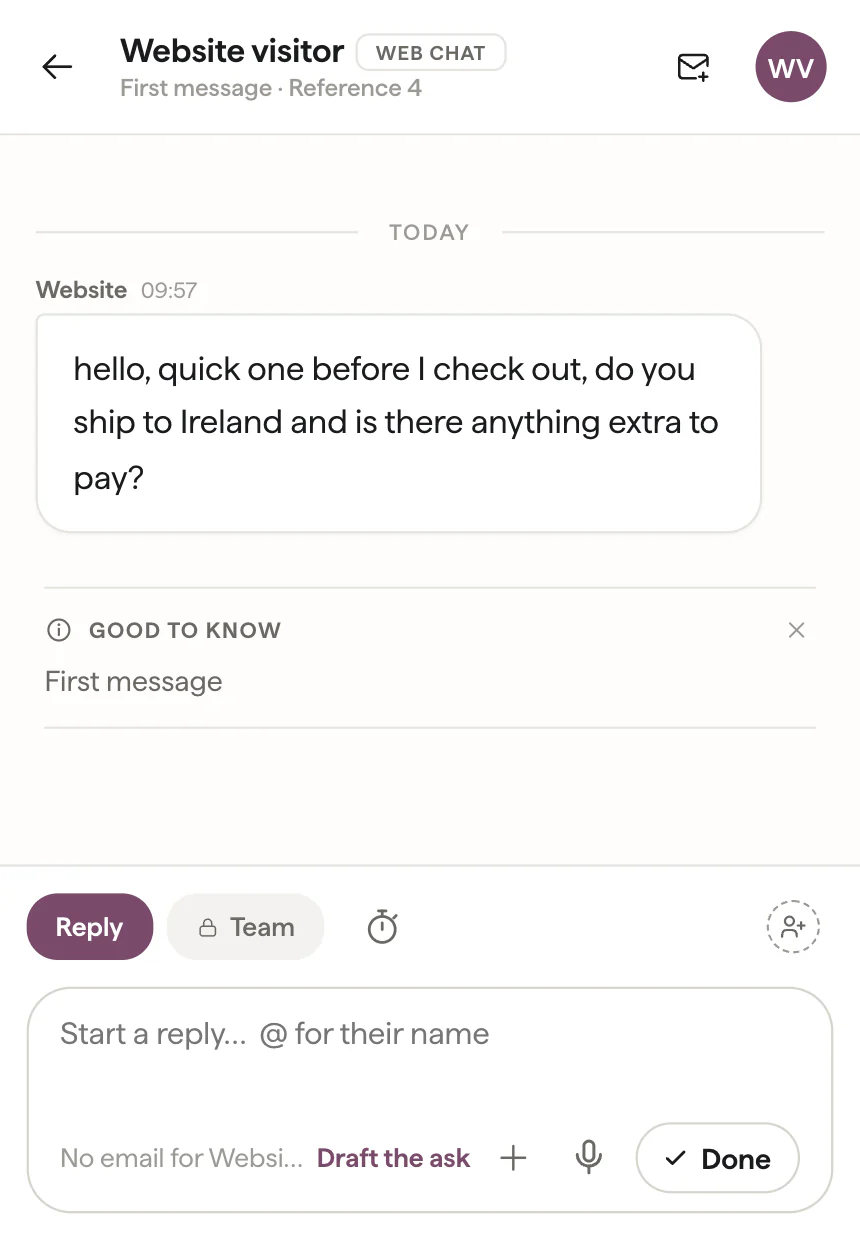
If the button doesn’t appear, it is usually one of these:
- The site hasn’t been published since the code went in. Webflow and Wix in particular only run custom code on the live site.
- A cache is serving the old page. Clear your caching plugin or your host’s cache and reload.
- It’s on a different address. For security, the chat only runs on your own domain and its subdomains, so a staging site on another address won’t show it. If your site lives somewhere else, tell us and we’ll add it.
- The code went into one page rather than the site-wide setting.
Before the first chat
Set your hours. During them the chat says you usually reply in a few minutes. Outside them it tells visitors when you’re back, such as “Back Monday at 9am”, and they can still leave a message.
Get the iPhone app. A chat is only useful if someone sees it. The Vidual Inbox app sends a notification for each new message.
Check the colour. The chat uses your brand accent from Vidual Inbox. If you’d like it in a different colour from your emails, set one for it under Integrations.
Visitors give an email address with their first message, so if they close the tab before you reply, your reply goes to them by email and their answer lands back in the chat. Chats arrive alongside your email and DMs, and a visitor who later emails you is the same person in Inbox. For how a small team runs chat day to day, see chat widgets for websites, for why ours does what it does, a simple live chat takes a lot of work, and for the whole of it on one page, live chat for businesses, without the help desk.
Speed, cookies and how it looks
Will live chat slow my website down?
Not noticeably. The script loads asynchronously, so your page finishes loading without waiting for it, and it is about 20 KB compressed, smaller than most photos on a home page.
Does the chat widget use cookies?
It sets no cookies. It keeps the visitor’s conversation, their email address once they give it, and the pages they have looked at on your site in the browser’s own storage, so the chat is still there after a reload. Mention it in your privacy policy as you would any other tool on your site.
Can I add live chat to some pages and not others?
Yes. The chat appears on any page that carries the code, so paste it into those pages rather than the site-wide footer. On Wix, choose specific pages instead of All pages.
Will the chat clash with my site’s design?
No. It draws itself in its own sealed-off layer, so your site’s styles don’t change it and it doesn’t change your site. Its colour follows the accent you choose in Vidual Inbox, or a colour you set just for the chat.
How does the chat look on phones?
It sits as a round button in the bottom right corner and opens full screen on a phone, with room for the keyboard.